

Prepare
Get Server and Model Credentials
You will need the following:
Now we have:
- Server URL
- Model to use
This is an illustrated guide on how to set up a server with Jan, unwrap to follow
This is an illustrated guide on how to set up a server with Jan, unwrap to follow
Get the App
Download and install Jan from the official website, jan.ai .
Find the Model of Choice
Find a model to use on Hugging Face .We will proceed with Qwen3.5-35B-A3B .Navigate to Use this model dropdown and pick Jan.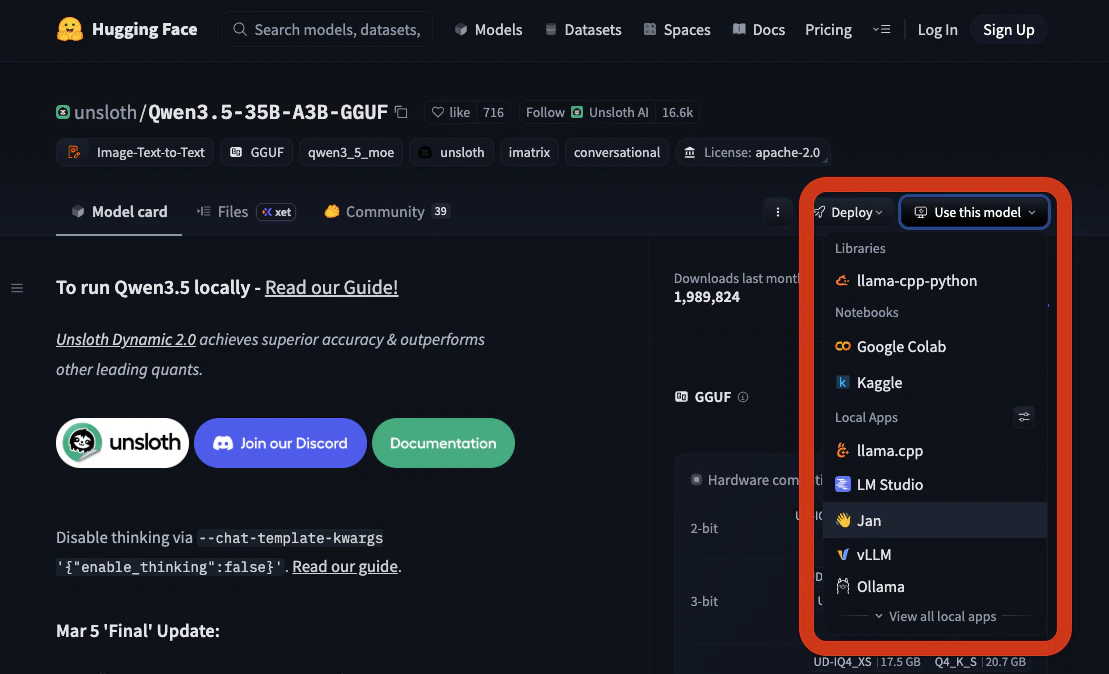
Download the Model
It opens the model card in Jan.Navigate to the model unsloth/Qwen3_5-35B-A3B-Q4_K_M and click Download.Wait for it to download completely.
On illustration: Qwen3.5-35B-A3B is ready to be used.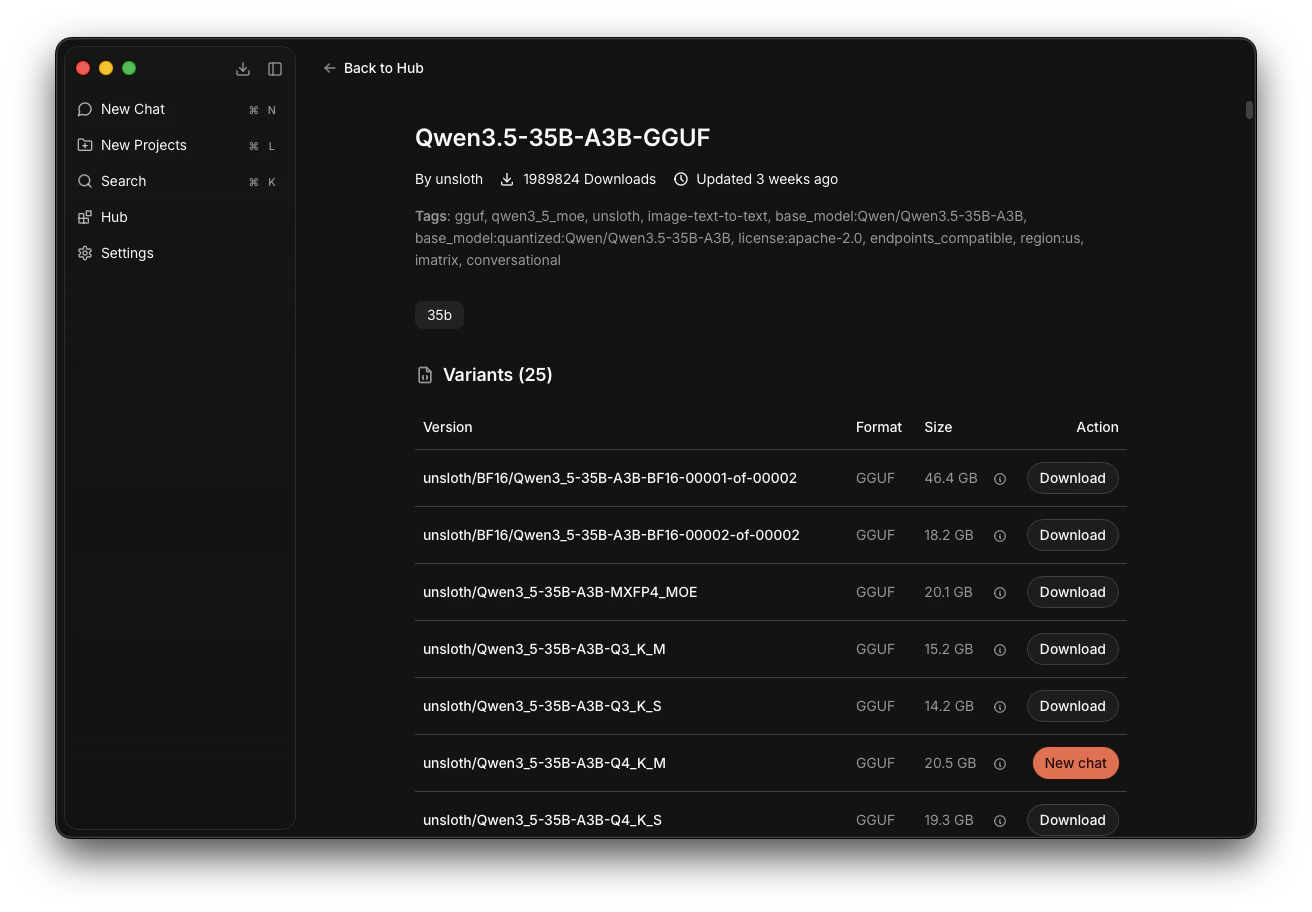
On illustration: Qwen3.5-35B-A3B is ready to be used.
Launch the Server
Go to Settings -> Local API Server -> Click Start Server.Jan default server URL is 127.0.0.1:1337/v1/. Save this URL.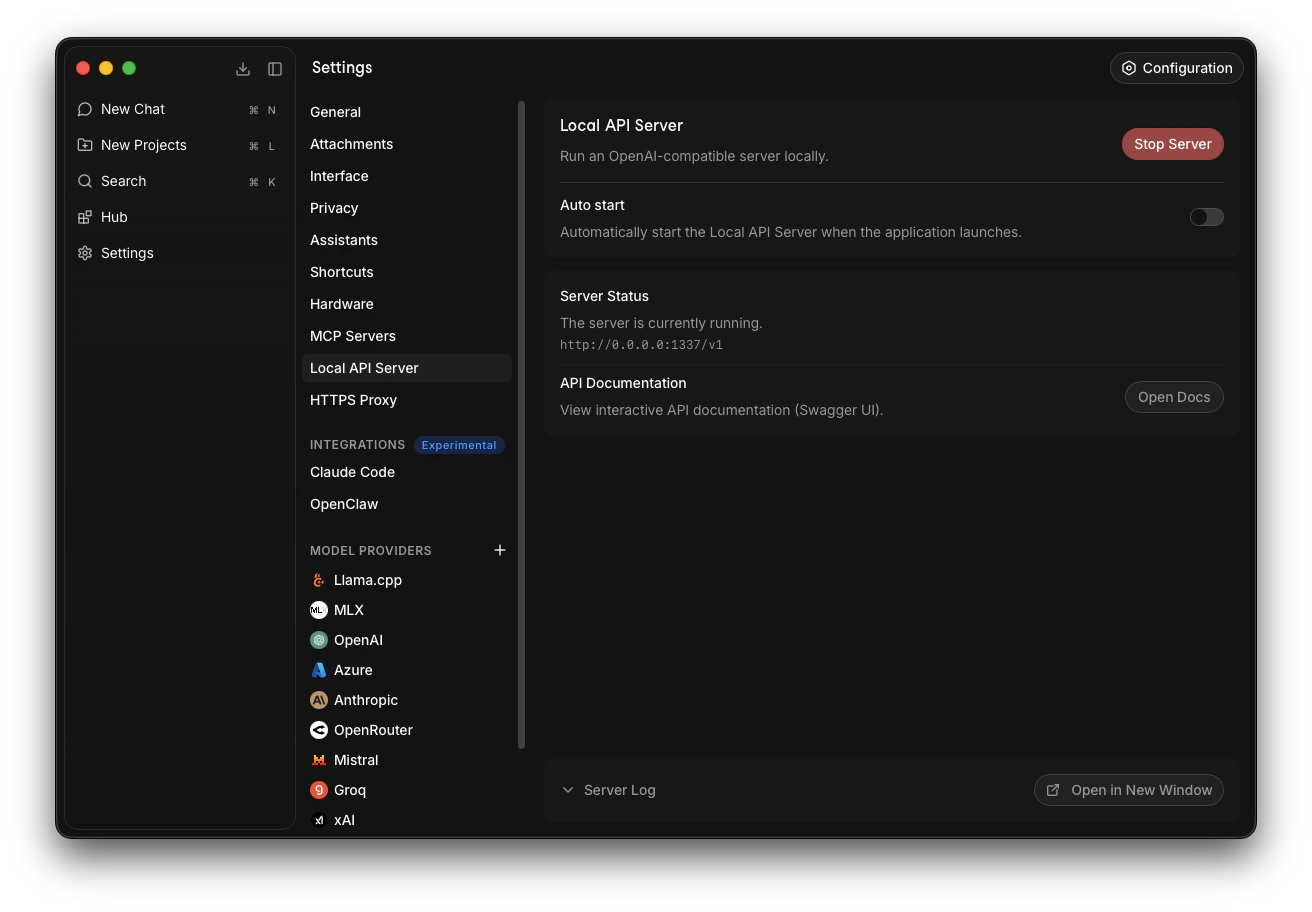
Launch the Model
Note that models can be launched and stopped at any time before or while the server is running.Go to Settings -> Llama.cpp -> Find our model, Qwen3_5-35B-A3B-Q4_K_M, and click Start.It will take time to launch. If there are no errors, the model is successfully launched.
On illustration: Qwen3_5-35B-A3B-Q4_K_M is successfully launched.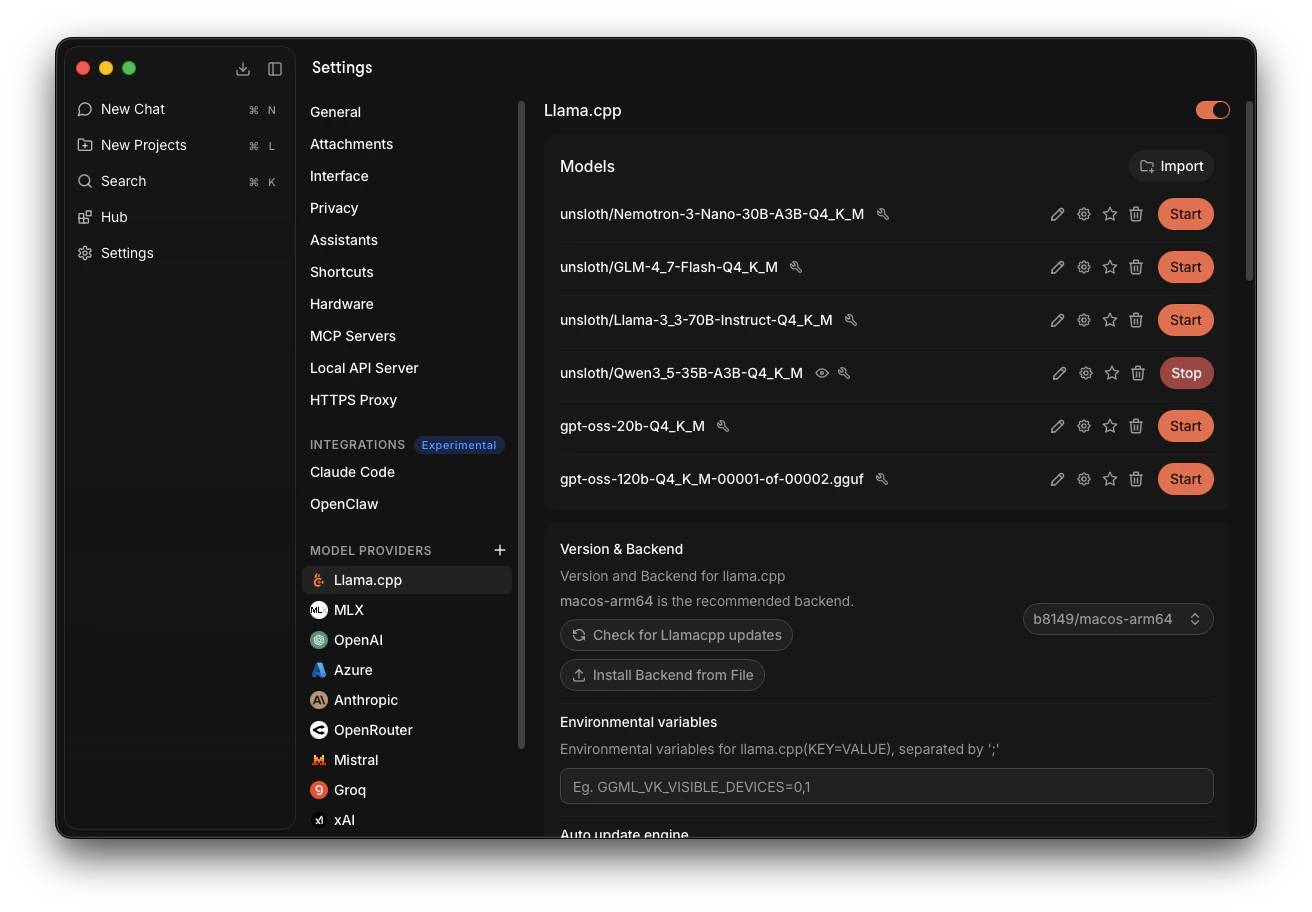
On illustration: Qwen3_5-35B-A3B-Q4_K_M is successfully launched.
Get Model's Credentials
To be sure we made no mistakes, we will get the model’s credentials from our server’s
On illustration: Qwen3_5-35B-A3B-Q4_K_M is available on our server.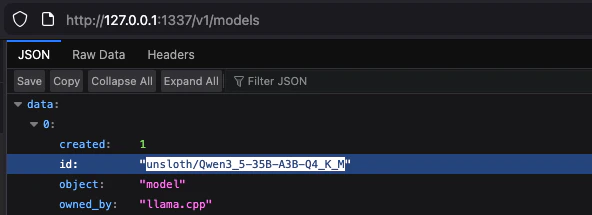
models endpoint:127.0.0.1:1337/v1/modelsFind our model and copy its id without quotes, like that: unsloth/Qwen3_5-35B-A3B-Q4_K_MOn illustration: Qwen3_5-35B-A3B-Q4_K_M is available on our server.
- Server URL: 127.0.0.1:1337/v1/
- Model to use:
unsloth/Qwen3_5-35B-A3B-Q4_K_M
Participate
Initial Setup
When the Fortytwo App CLI onboarding wizard or an Agent (OpenClaw) onboarding asks you to configure the AI provider:
- Inference Provider → select
Local - Server URL → enter
http://127.0.0.1:1337/v1/(Jan’s default) - Model → enter your model name (e.g.
unsloth/Qwen3_5-35B-A3B-Q4_K_M)
Change as You Go
Depending on the situation, your node will either be participating or passing the capability challenges. Switching between those might require you to change the model your node uses at the time. For example, use a larger model or switch to OpenRouter to pass the Reactivation Challenge or return to your primary local Participation model.
- App Fortytwo CLI
- AI Agent
Either use CLI commands:Or edit the
config.json and then restart CLI for changes to apply. The file gets created automatically during setup.- macOS/Linux:
~/.fortytwo/config.json - Windows:
%USERPROFILE%\.fortytwo\config.json
JSON